Скриншоты
Сведения о приложении
- Версия
- 520 | 515.0 | 11.5
- Размер
- 9.54 MB
- Обновлено
- February 24, 2025
- Требуется
- Windows 8
- Язык
- English | Korean
- Лицензия
- Free
- Разработчик
- Ohsoft
- Категория
- Windows OS
SoftPas на:
Этот продукт также доступен на следующих языках:
О oCam
Скачать oCam – Бесплатный рекордер экрана для Windows с поддержкой прямой трансляции и веб‑камеры
Ищете надёжный, лёгкий и удобный инструмент для записи экрана? oCam — мощное программное обеспечение для записи экрана, разработанное специально для пользователей Windows, желающих легко захватывать свой экран. Будь то создание обучающих руководств, запись игрового процесса, презентация бизнес‑идей или производство контента для YouTube, oCam обеспечивает высококачественный видеовывод при минимальной настройке. Благодаря поддержке интеграции веб‑камеры, прямой трансляции и настраиваемых областей записи, oCam выделяется среди бесплатных рекордеров экрана. В отличие от сложных альтернатив, таких как OBS Studio или Camtasia, oCam делает упор на простоту без ущерба для производительности. Его интуитивный интерфейс позволяет даже новичкам начать запись за считанные секунды. Программа работает плавно на Windows 7 и новее, что делает её доступной широкому кругу пользователей. С бесплатной и премиум‑версиями oCam предлагает гибкость — бесплатный выпуск включает базовые функции, а платное обновление убирает водяные знаки и ограничения по времени, раскрывая весь потенциал. Если вы ищете безопасный, быстрый и эффективный способ записать экран, oCam — один из лучших инструментов 2024 года.
Почему oCam выделяется среди рекордеров экрана
When it comes to screen recording software, the market is flooded with options—some powerful, others overly complicated. oCam strikes the perfect balance between simplicity and functionality. Unlike heavy-duty tools like OBS Studio, which require hours of learning, oCam offers a clean, minimal interface that gets you recording in under a minute. This makes it ideal for educators, remote workers, content creators, and students who need to capture their screen quickly and efficiently. One of the most impressive aspects of oCam is its performance. The software runs with minimal impact on system resources, ensuring smooth recording even during demanding tasks like gaming or video editing. Whether you're recording a 10-minute tutorial or a 2-hour webinar, oCam maintains stability without crashing or lagging. Another standout feature is its support for multiple input sources. You can record your screen, webcam, microphone, system audio, or a combination of all three—all from a single interface. This versatility makes oCam perfect for creating engaging video content, such as online courses, product demos, or vlogs. The ability to define custom recording areas (full screen, window, or region) gives users full control over what gets captured. Plus, the built-in audio mixer allows you to balance microphone and system audio levels in real time. For those who want to go live, oCam supports RTMP streaming to platforms like YouTube, Twitch, and Facebook Live—making it a true all-in-one solution. The software also supports a wide range of output formats, including MP4, AVI, and FLV, ensuring compatibility across devices and platforms. Whether you're downloading oCam for personal use or professional projects, its combination of speed, reliability, and ease of use makes it a top contender.Key Features That Make oCam a Must-Have Tool
- High-quality screen recording with adjustable resolution and frame rate
- Support for webcam and system audio input
- Customizable recording area: full screen, window, or region
- Real-time audio mixing for microphone and system sound
- Live streaming via RTMP to YouTube, Twitch, and Facebook
- Multiple output formats: MP4, AVI, FLV, and more
- Lightweight and low system resource usage
- One-click recording with customizable hotkeys
- Watermark-free recording in the paid version
- Unlimited recording duration (with paid license)
- Basic post-recording editing tools (trim, crop, add text)
How to Install and Use oCam on Your Windows PC
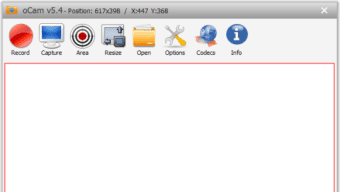
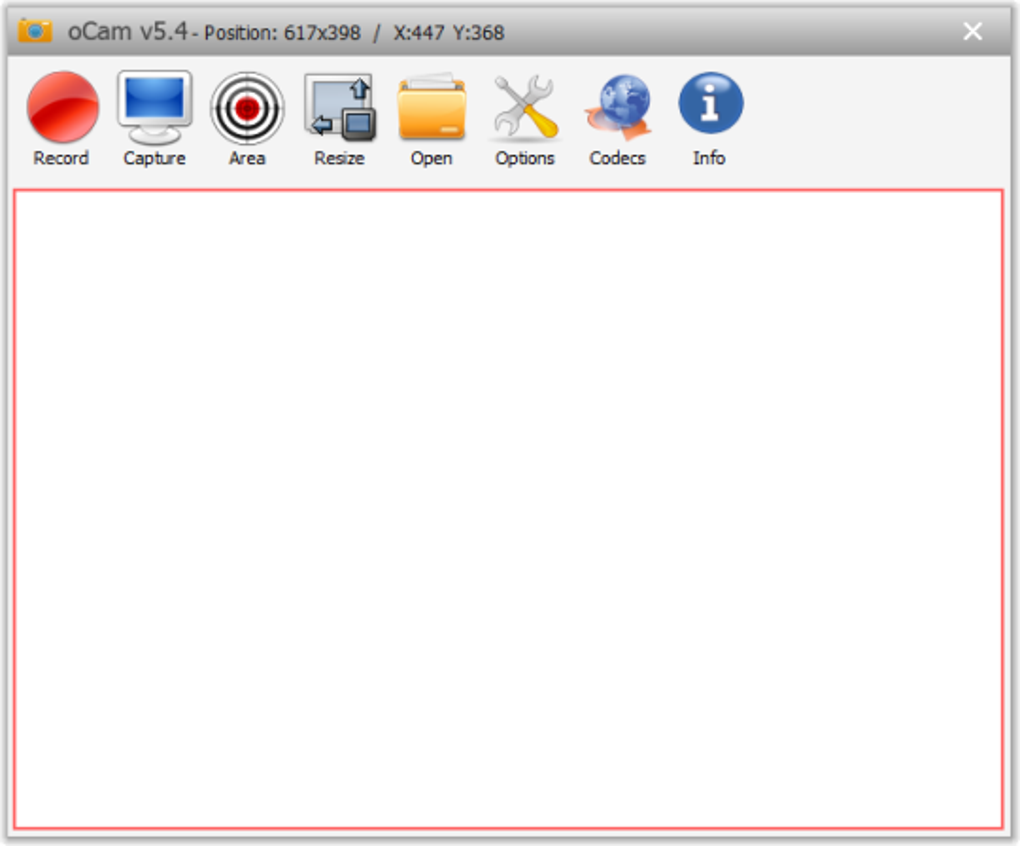
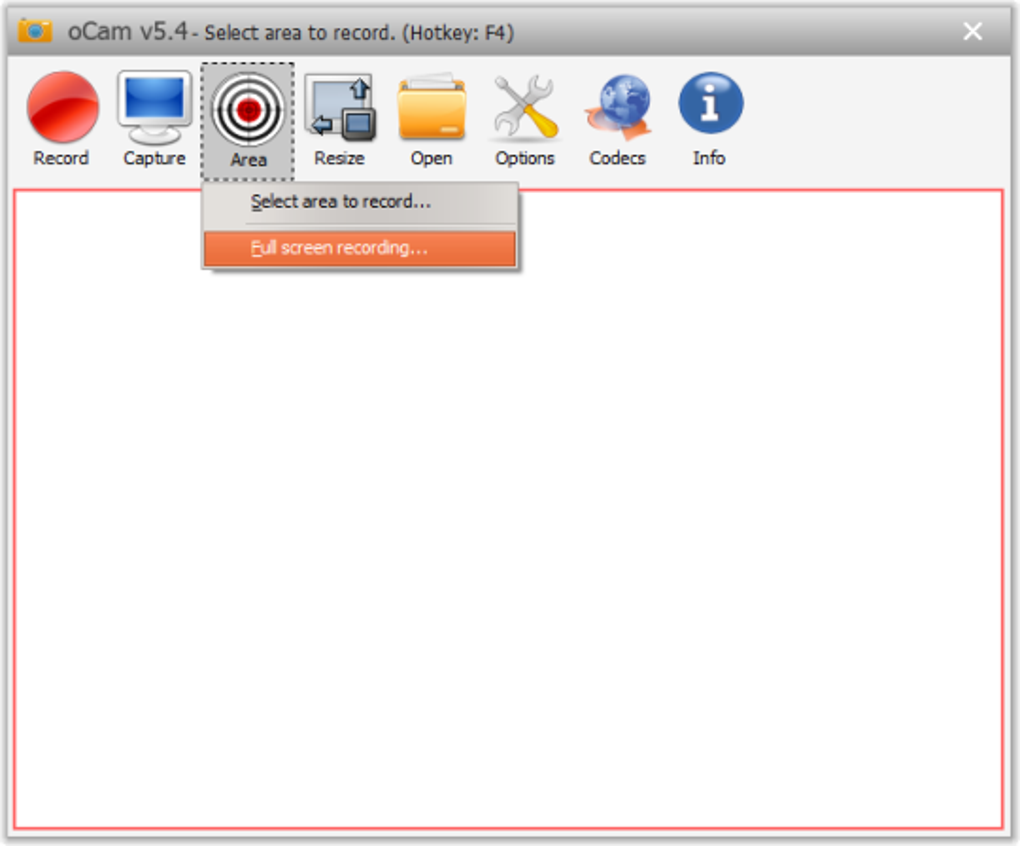
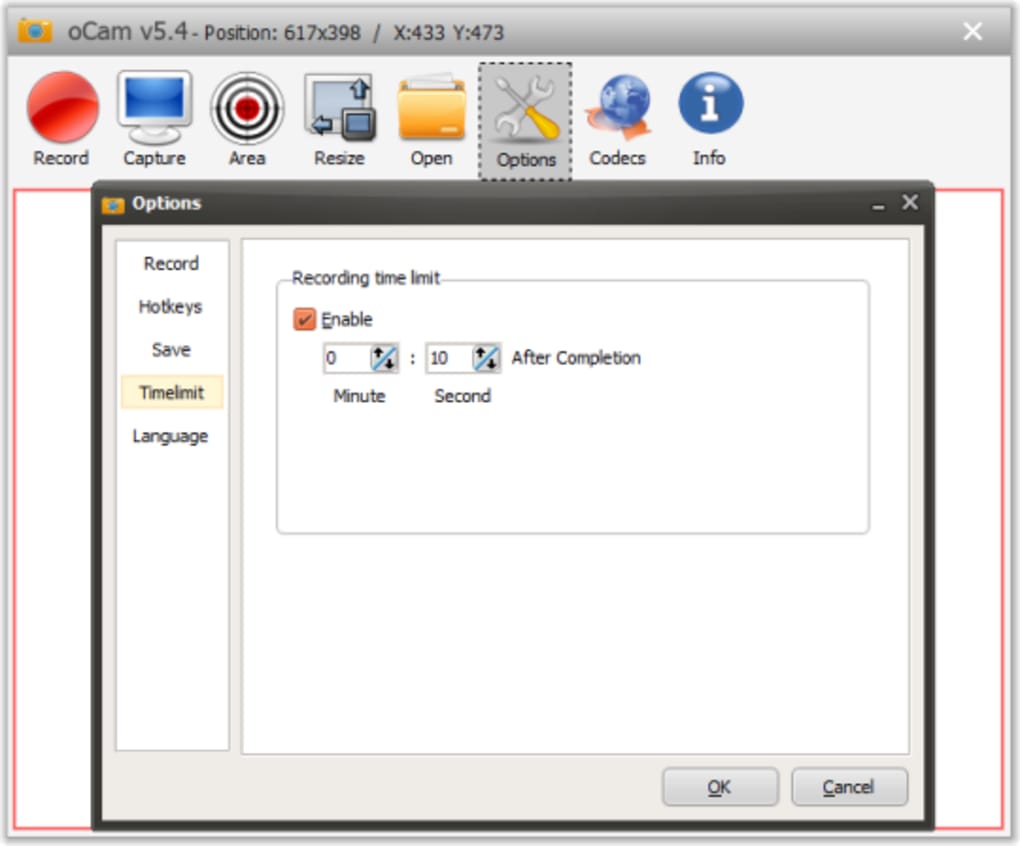
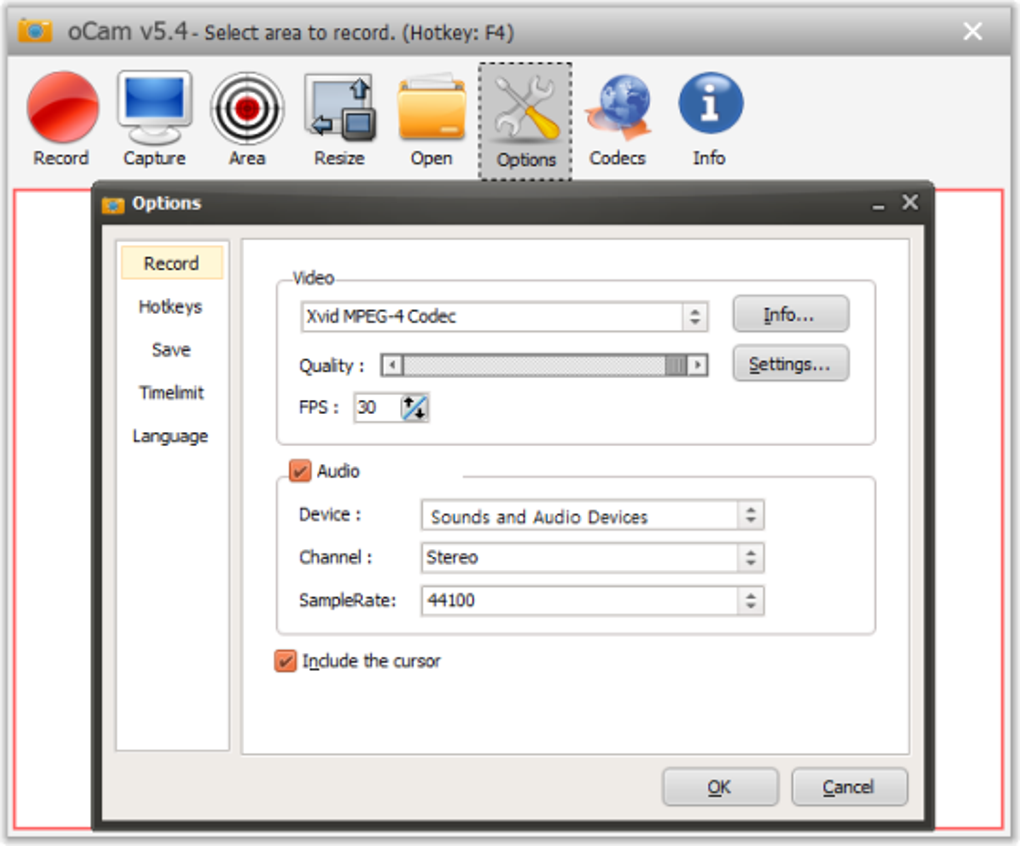
Getting started with oCam is straightforward and hassle-free. First, visit the official website and download the installer for your Windows system. The download is free and secure—no adware or bundled software. Once the file is downloaded, run the installer and follow the on-screen prompts. The installation process takes less than a minute and doesn’t require advanced technical knowledge. After installation, launch oCam from your desktop or Start menu. The main interface is clean and intuitive, with clearly labeled buttons for recording, settings, and playback. To begin recording, click the "Record" button or use your assigned hotkey. You’ll be prompted to select your recording area—choose from full screen, window, or a custom region. Next, configure your audio sources: select microphone, system audio, or both. If you’re using a webcam, enable it in the settings and position it within the recording frame. Once everything is set, click "Start" and your recording will begin immediately. During recording, you can pause, resume, or stop using the on-screen controls or your hotkeys. When finished, the recording is saved automatically to your chosen folder. For advanced users, the settings menu allows you to adjust video quality, frame rate, codec, and output format. The paid version unlocks additional options like watermark removal and unlimited recording time. To edit your recording, use the built-in tools to trim clips, crop the frame, or add text overlays. For more complex edits, export the file to a video editor like DaVinci Resolve or Adobe Premiere. Overall, oCam’s workflow is designed for speed and simplicity—perfect for users who want to record and publish content quickly.Compatibility, System Requirements & Licensing
oCam is exclusively available for the Windows operating system. It supports Windows 7, 8, 8.1, and 10, as well as Windows 11, making it compatible with a wide range of devices. The software is lightweight, requiring minimal RAM and CPU usage, so it runs smoothly even on older machines. System requirements are modest: a modern processor, at least 1 GB of RAM, and 50 MB of free disk space. This low footprint ensures that oCam won’t slow down your computer during recording sessions. The free version is fully functional and allows you to record up to 5 minutes per session with a watermark. This is great for testing the software or creating short clips. However, for extended use, the paid version is recommended. The premium license removes time limits and watermarks, enabling unlimited recording and professional-grade output. Pricing is reasonable, with a one-time purchase option that includes lifetime updates. This is a major advantage over subscription-based tools. oCam also supports multiple audio and video codecs, ensuring compatibility with most media players and editing software. Whether you're sharing recordings on social media, uploading to YouTube, or delivering presentations, oCam delivers consistent results across platforms.Pros and Cons of Using oCam
- Pros:
- Simple, intuitive interface for beginners
- Lightweight and fast performance
- Supports webcam, system audio, and microphone
- Live streaming to major platforms
- Multiple output formats and customizable settings
- One-click recording with hotkey support
- Free version available with basic features
- One-time purchase with lifetime updates
- Cons:
- Only available for Windows (no Mac or Linux support)
- Limited editing tools compared to full-featured editors
- Free version has 5-minute limit and watermark
- No built-in video effects or transitions
- Less customizable than OBS Studio
Frequently Asked Questions (FAQ)
Final Verdict: Is oCam Worth Downloading?
In a crowded market of screen recording tools, oCam emerges as a standout choice for Windows users seeking a simple, fast, and reliable solution. Its lightweight design, intuitive interface, and powerful features make it ideal for educators, remote workers, content creators, and students alike. While it lacks cross-platform support and advanced editing tools, its core strengths—speed, stability, and ease of use—more than compensate. If you're looking to record your screen for tutorials, presentations, or live streams without the learning curve of OBS Studio, oCam is an excellent choice. The free version is a great way to test the software, but upgrading to the paid version unlocks full potential. With a one-time purchase, lifetime updates, and no subscriptions, it offers excellent value. Whether you're recording a quick demo or a full-length course, oCam delivers consistent, high-quality results. Ready to start recording? Download oCam today and experience the future of screen capture—simple, secure, and efficient.Руководства и уроки
Как установить oCam
- Нажмите кнопку Скачать выше.
- После перенаправления примите условия и нажмите Установить.
- Дождитесь завершения загрузки oCam на ваше устройство.
Как использовать oCam
Это ПО в основном используется для основных функций, описанных выше. Откройте приложение после установки, чтобы изучить его возможности.
Отзывы пользователей
Отзывов пока нет. Поделитесь своим опытом первым.
Вам также может понравиться
еще
Llama 2
Free-to-use large language model As the new addition to Meta’s arsenal of langua...

NotebookLM
Revolutionizing the note-taking and idea-generation process NotebookLM is an exp...

Github co pilot
AI-inspired software development and coding platform GitHub Copilot is a browser...

Google Gemma
Google’s lightweight AI models Introducing Google Gemma , a family of cutting-ed...

AI Image Enlarger
A free app for Windows, by ai-image-larger. AI Image Enlarger is a free software...

DALL E
AI-driven text-to-image transformation engine DALL·E is a free graphic and desig...